Teacher Portal
Every teacher gets their own page
Their week, their subs, their pay and their classes, on their phone. They sign in with a code we email them. No password, no app.
Subs
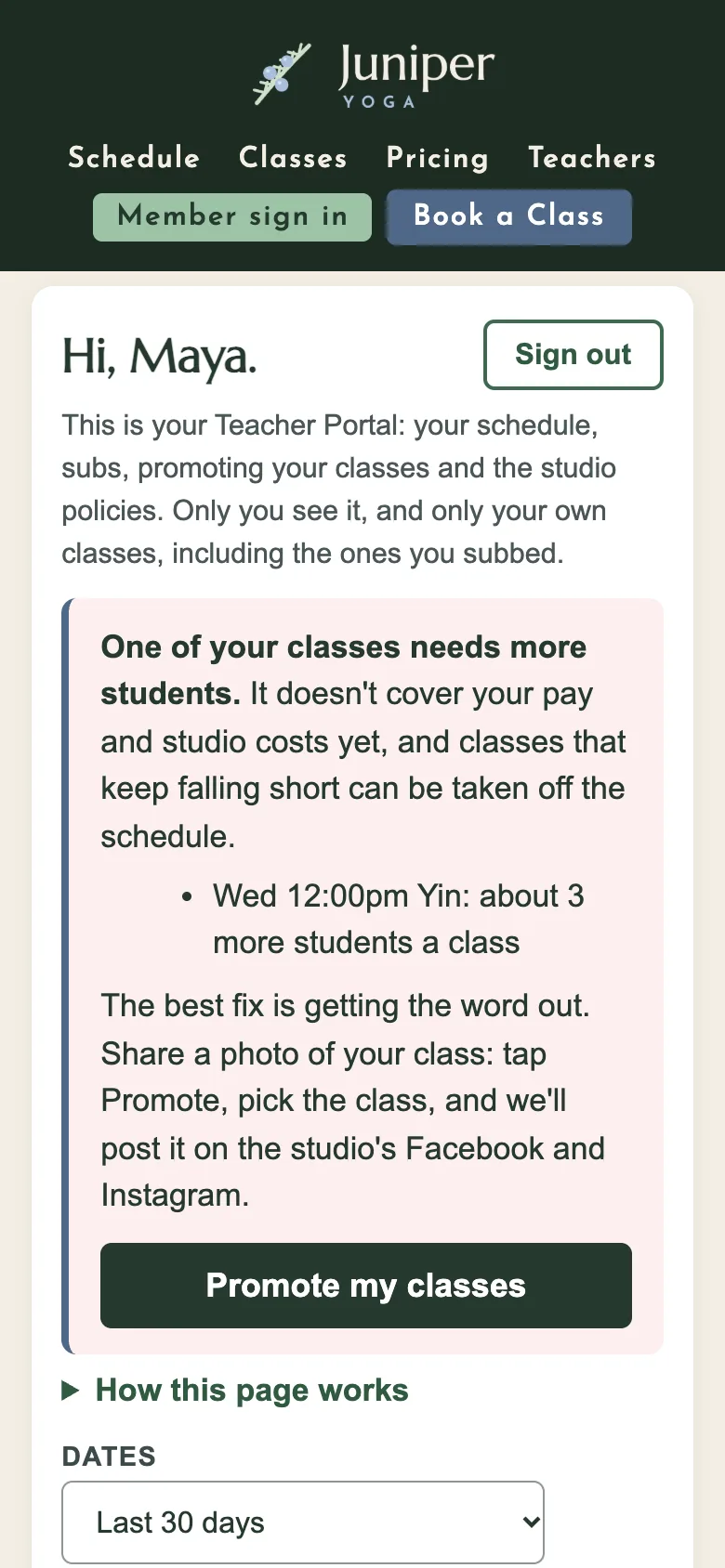
Need a sub? Tap a button.
Each teacher sees their next 7 days. Every class has two buttons: Need a sub and Cancel class.
- Need a sub emails every other teacher and puts the class on their pages, with an optional note.
- The first teacher to tap I'll take it gets the class. The others see it's gone.
- The teacher who asked hears right away, then switches the name on the class in the WellnessLiving app.
- Nobody can cover? Cancel class sends the studio a to-do and a text, so the class comes off in WellnessLiving and students are told.
Pay and class numbers
Their pay, and how their classes are doing
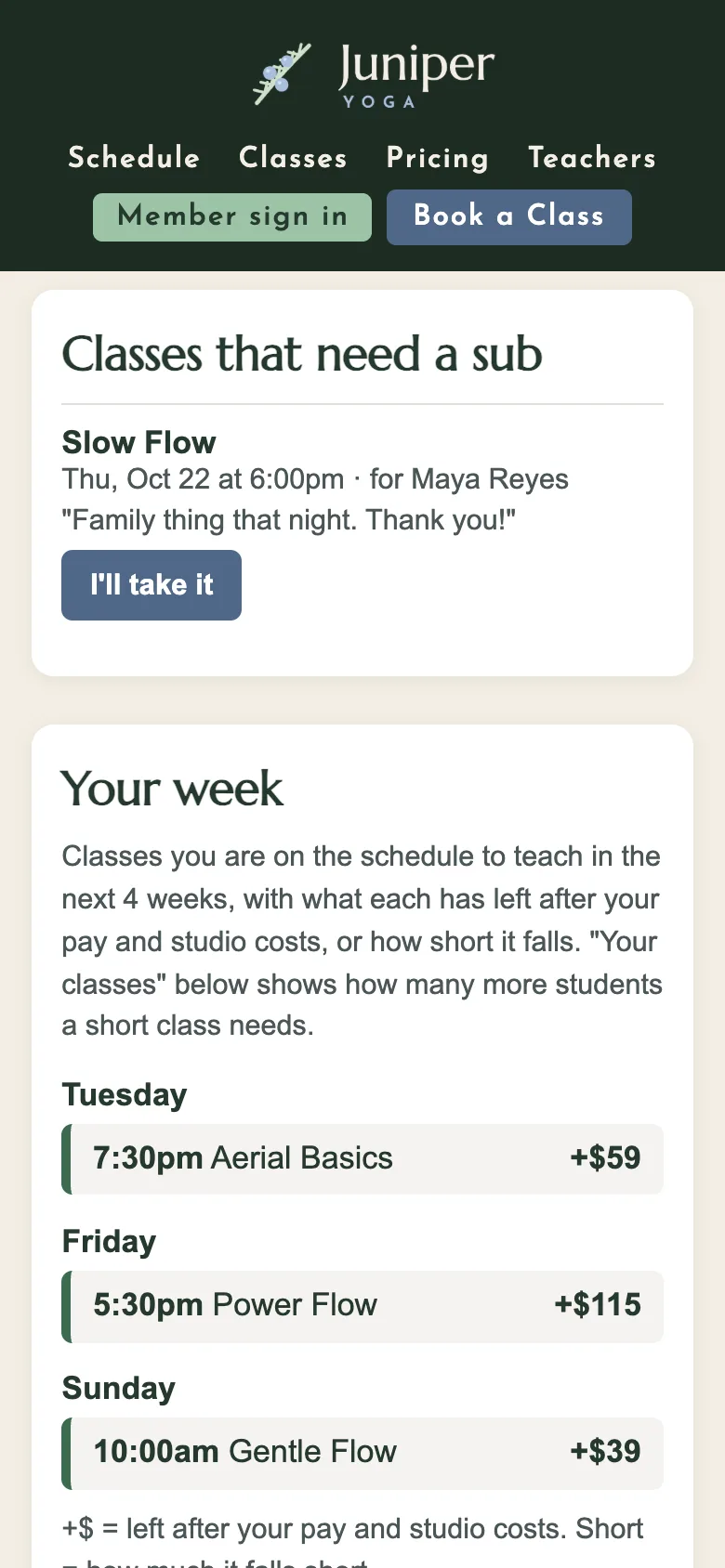
Teachers see their own pay and their own classes. Nobody sees anyone else's.
Their pay
Classes taught, subs covered and pay for any dates they pick, worked out from your pay rules.
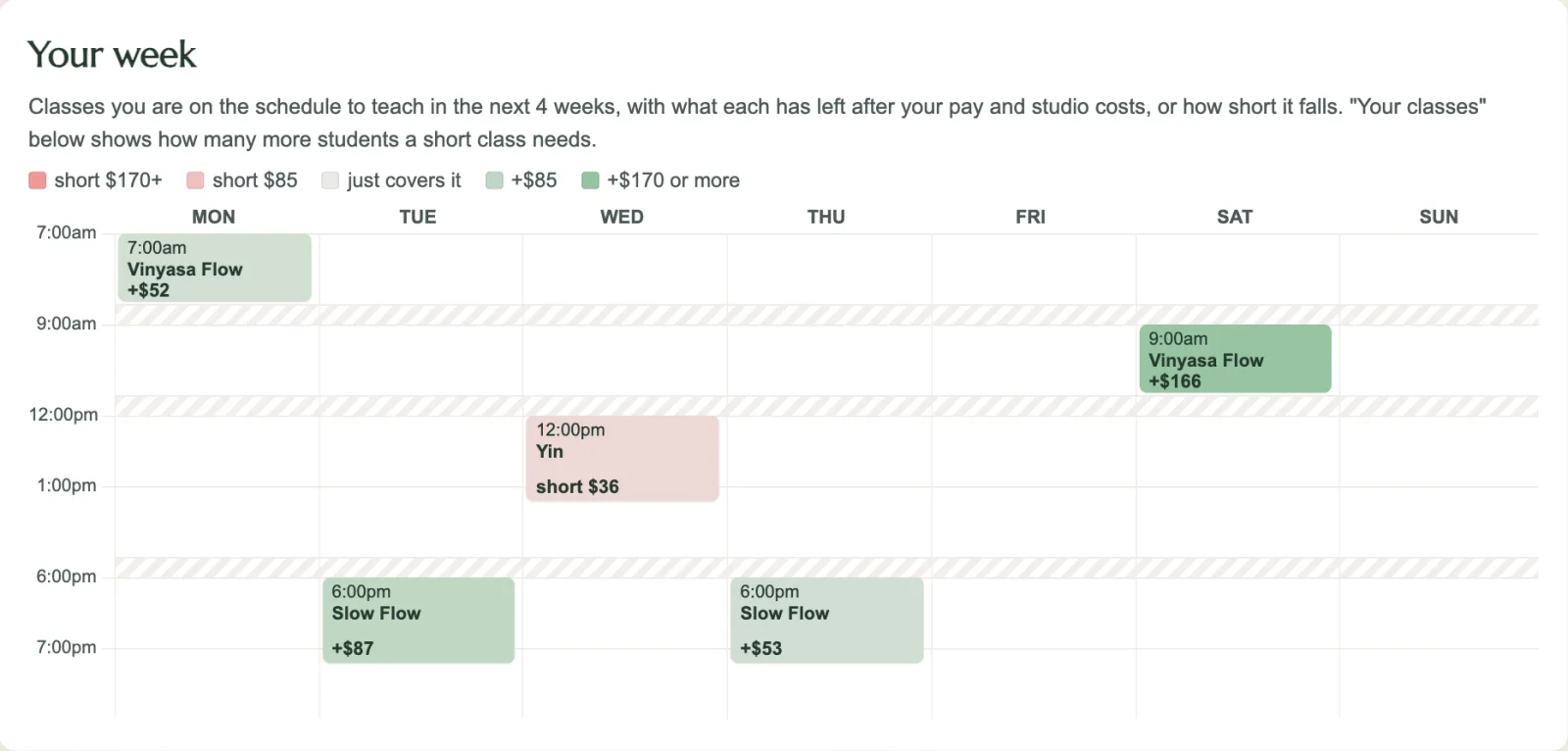
Which classes cover their costs
Each class shows what it has left after the teacher's pay and studio costs, or how far it falls short.
A heads-up when one doesn't
When a class keeps falling short, the teacher sees how many more students it needs, with a button to promote it.
Promote a class
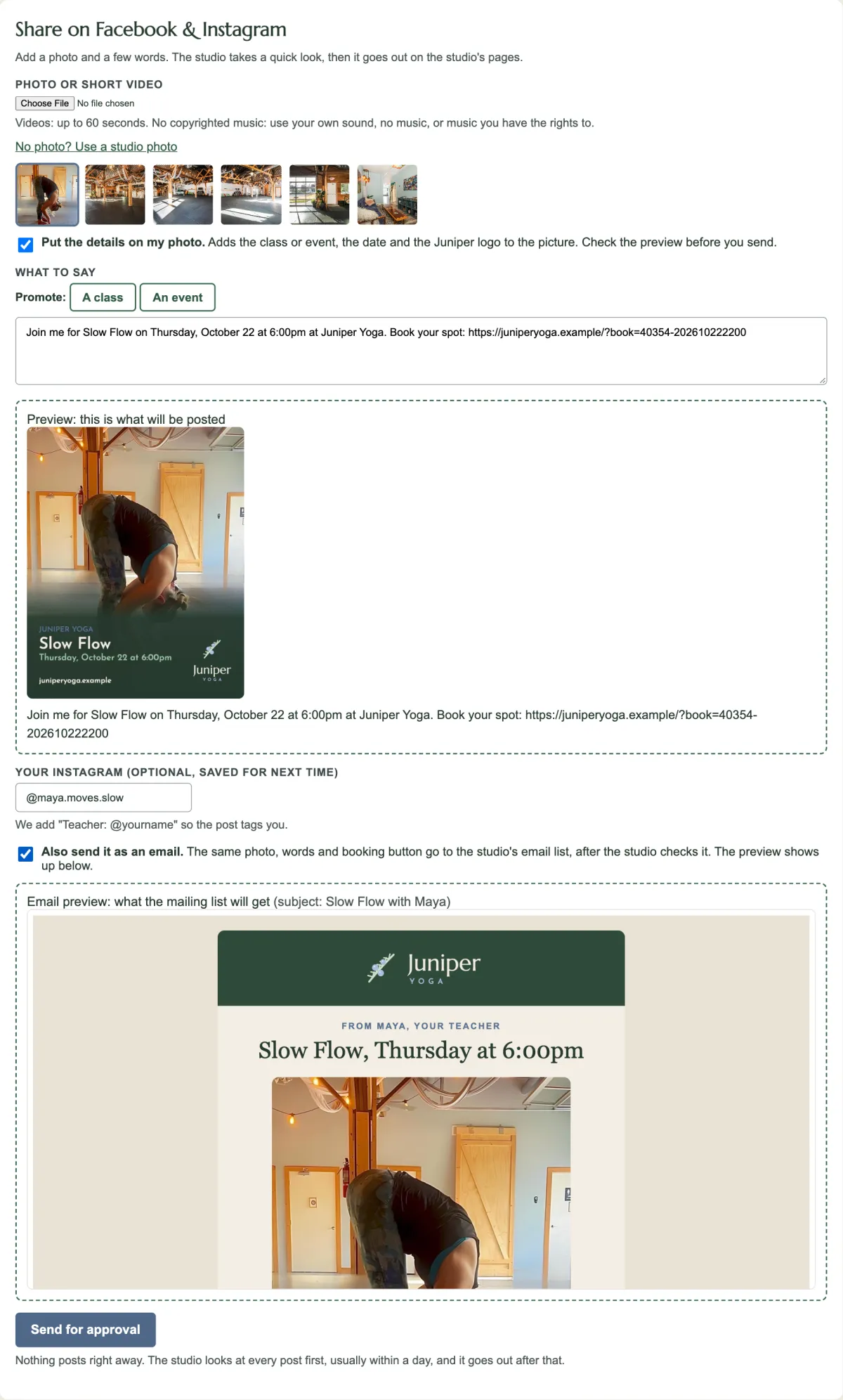
Teachers make the post. You approve it.
A teacher picks a photo, or one of the studio's own, and picks the class. Studio Bolster adds the class name, the date and your logo to the picture. They write a few words and tap Send for approval.
- A flyer-style photo for Facebook and Instagram, sized for both
- An email version in your WellnessLiving email format, if they want it
- Nothing posts until you approve it on your Marketing page
Policies
The studio rules, and a helper that knows them
Your policies sit at the bottom of every teacher's page: sub notice, cancelling, hands-on assists, opening and closing. You write them once and publish them when they're ready.
Teachers can also ask the helper, like "How much notice for a sub?" It answers from your policies. If it doesn't know, it passes the question to you.
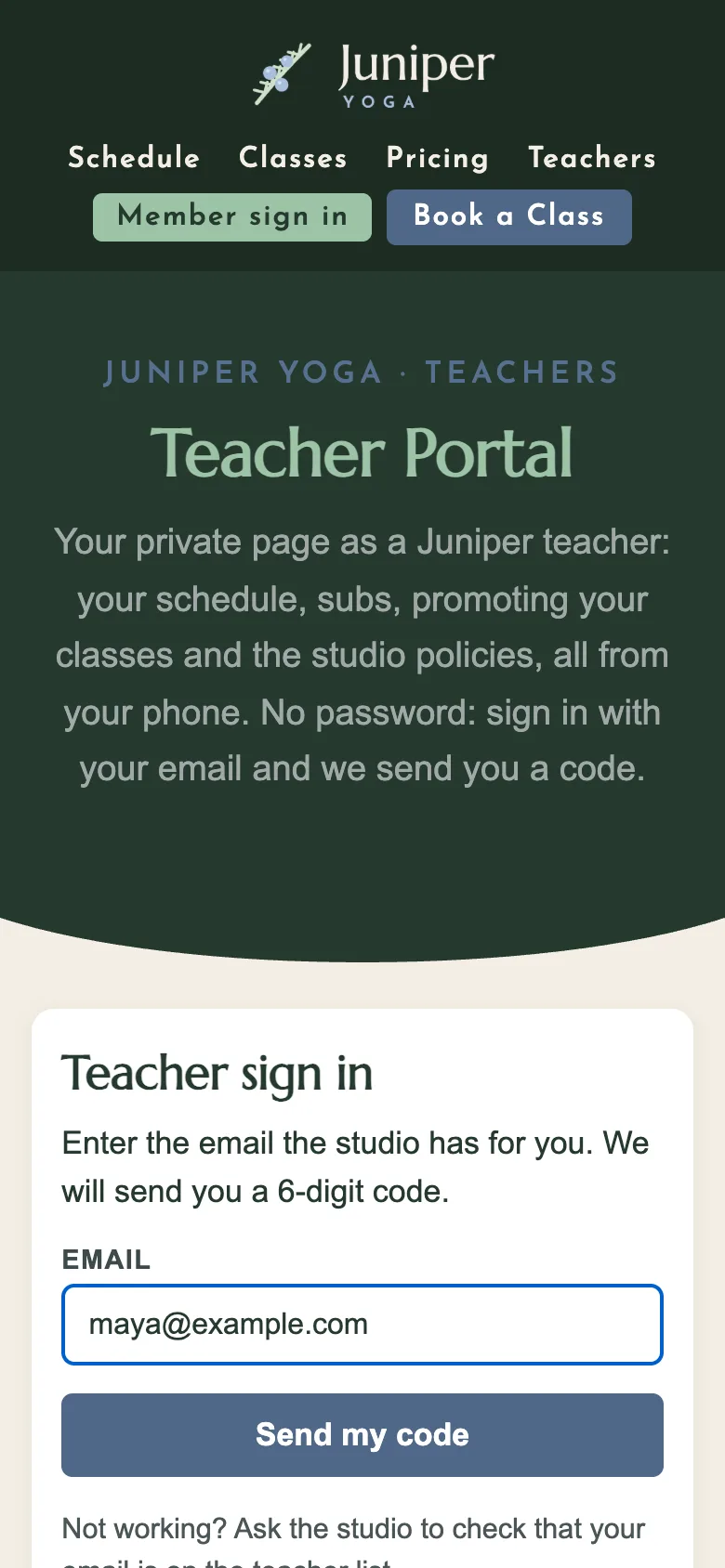
Screens shown with Juniper Yoga, our made-up demo studio. Names, classes, pay and numbers are invented.
Want the long version? Read how to find subs on WellnessLiving.
Founding studios
Half price for the first year
We're taking a small group of WellnessLiving studios first. You get Studio Bolster at half price for twelve months. In return you tell us what works and what doesn't, and give us a quote we can use once you're happy.
- Setup done with you, on a call, using your real schedule
- Your teachers signed in within the first week
- A direct line to the person who built it
On Mindbody or something else? Sign up anyway. It tells us where to go next.